Difference Between div and span in HTML (with Examples)
Introduction
In HTML, understanding the difference between <div> and <span> is one of the first essential lessons for every developer. Although both tags are used for grouping elements and applying styles, they serve very different structural and semantic purposes. Knowing when and how to use them correctly can make your code cleaner, more organized, and easier to maintain.
In this blog from KnowAdvance.com, we’ll explore the difference between div and span in HTML through practical examples, code snippets, and use cases that you can apply in real-world web projects. By the end, you’ll not only understand how they differ, but also when each tag is most appropriate.
What Is the <div> Tag?
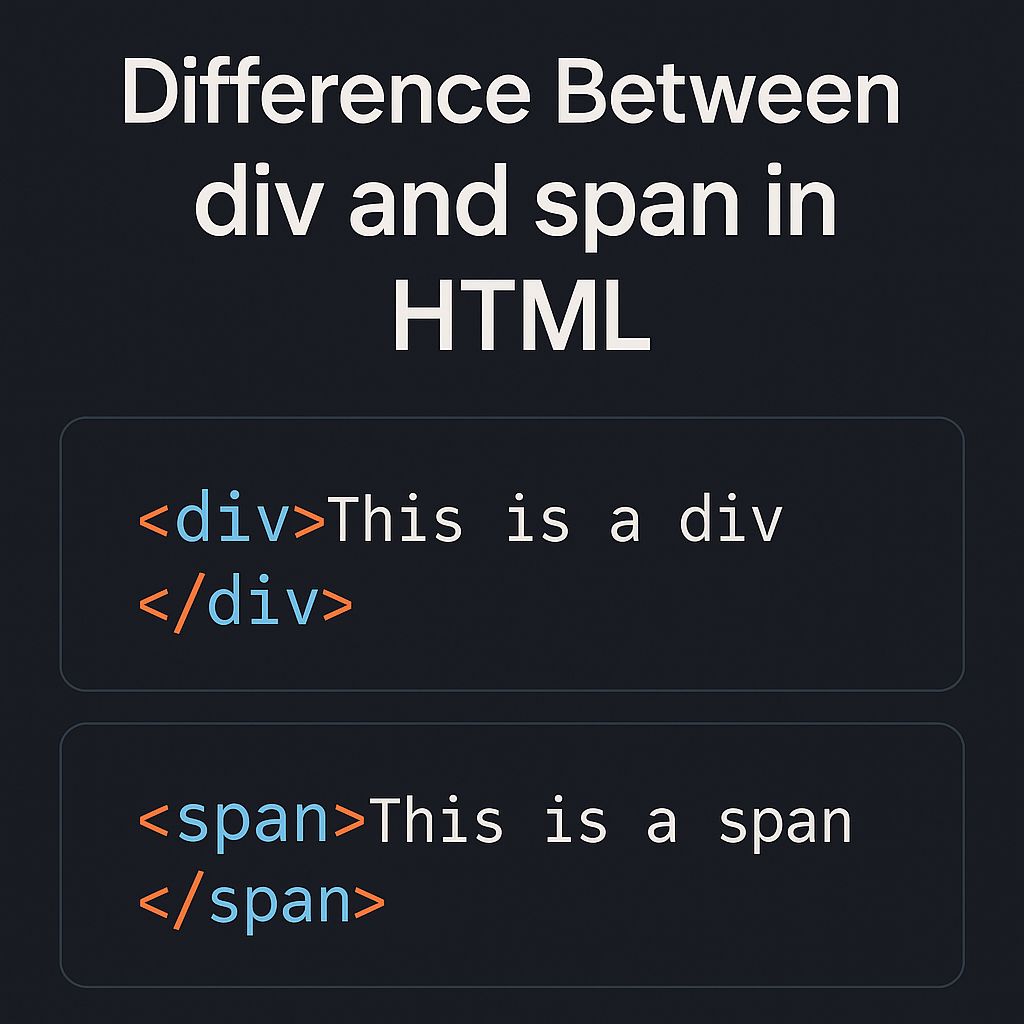
The <div> tag in HTML stands for “division.” It’s a block-level element used to group larger chunks of content together for styling or scripting purposes. It doesn’t carry any inherent semantic meaning — it’s simply a container that helps organize your layout.
Syntax of <div>:
<div>
  <h2>Welcome to KnowAdvance</h2>
  <p>Learn web development through practical examples.</p>
</div>
In the example above, the <div> groups a heading and paragraph together. This allows developers to style them collectively using CSS, like:
div {
  background-color: #f8f8f8;
  padding: 20px;
  border-radius: 8px;
}
The <div> tag is typically used for creating major structural components of a webpage such as headers, sections, sidebars, or footers. It acts as a container that holds content together and defines layout boundaries.
What Is the <span> Tag?
On the other hand, the <span> tag is an inline element used to style or manipulate small pieces of text or content within a block-level element. Unlike <div>, it doesn’t start on a new line — it flows inline with surrounding text.
Syntax of <span>:
<p>This is a <span style="color: blue;">highlighted</span> word.</p>
In this case, only the word “highlighted” will appear in blue, while the rest of the text remains unaffected. The <span> tag is perfect for small, inline adjustments like emphasizing certain words, adding icons, or applying JavaScript-based interactions.
Key Differences Between <div> and <span>
Although both tags serve as generic containers, their difference lies in how they behave in the document flow and how browsers render them. Let’s break down the main distinctions.
1. Display Behavior
The biggest difference between <div> and <span> is their display type:
<div>is a block-level element — it starts on a new line and takes up the full width available.<span>is an inline element — it does not start on a new line and only occupies the space its content requires.
Example Comparison:
<div>This is a div</div>
<div>This is another div</div>

<p>This is a <span>span</span> inside text.</p>
In the browser, each <div> will appear on a separate line, while the <span> will blend smoothly into the text flow.
2. Usage Purpose
Use <div> when you want to group larger sections of your layout — such as navigation bars, content sections, or footers. Use <span> for small inline content adjustments like changing a word’s color or applying a tooltip.
3. Typical Use Cases
- div: Page layout, grid containers, content wrappers
- span: Text highlights, inline formatting, tooltips, or icons
Practical Example: Styling with div and span
Let’s see both tags in action using a simple example.
<div class="card">
  <h3>Frontend Developer</h3>
  <p>Proficient in <span style="color:#007BFF;">HTML</span>, CSS, and JavaScript.</p>
</div>
.card {
  border: 1px solid #ddd;
  padding: 16px;
  border-radius: 8px;
  background: #f9f9f9;
  margin: 10px 0;
}
Here, the <div> creates a card component that groups related elements together, while <span> highlights a specific word inside the paragraph. This combination makes web pages more readable and visually structured.
Inline vs Block Elements — The Core Concept
To fully grasp the difference, it’s important to understand the concept of inline vs block-level elements in HTML. A block-level element always starts on a new line and stretches across the full width available. Inline elements, however, appear within the same line, flowing naturally with text.
Block Elements Examples:
- <div>
- <section>
- <article>
- <header>
- <footer>
Inline Elements Examples:
- <span>
- <a>
- <strong>
- <em>
- <label>
Understanding this difference is essential when designing layouts using CSS. For example, when building flexible page sections, you can use CSS display properties such as display: inline-block or display: flex to change default behaviors. Learn more about layout control in our guide on CSS Flexbox.
When to Use div vs span
Let’s quickly summarize the right time to use each tag:
| Tag | Type | Use For | Example |
|---|---|---|---|
| <div> | Block-level | Layout sections, containers, wrappers | <div class="header">Header Content</div> |
| <span> | Inline | Text highlights, small inline style changes | <p>This is a <span>blue</span> word.</p> |
How div and span Work with CSS
Both tags become powerful when combined with CSS. A <div> can serve as a container for layout and positioning, while a <span> can fine-tune inline text styling. For instance, you can center a <div> container easily using modern CSS techniques. Check out our tutorial on How to Center Anything in CSS for practical examples.
Next Up: Real-World Scenarios and Semantic Alternatives
In the next part of this article, we’ll look at real-world use cases, semantic alternatives to <div> and <span>, and best practices to make your HTML more meaningful and SEO-friendly. We’ll also include a Further Reading section, FAQs, and a concise Conclusion to summarize key takeaways.
Real-World Scenarios: div vs span in Action
Now that you understand the theoretical difference between <div> and <span>, let’s see how they work in real-world web development projects. Developers often combine these two tags strategically to create responsive, visually appealing, and well-structured layouts.
1. Using <div> for Page Structure
The <div> tag acts as a foundation for creating page sections and containers. Most websites are divided into logical parts like headers, content areas, sidebars, and footers — and <div> is often used to wrap these elements for styling or layout control.
<div class="header">
  <h1>KnowAdvance</h1>
  <nav>
    <a href="#">Home</a>
    <a href="#">Blog</a>
    <a href="#">Contact</a>
  </nav>
</div>

<div class="content">
  <article>
    <h2>Difference Between div and span</h2>
    <p>Learn how to use div and span efficiently in HTML.</p>
  </article>
</div>
Here, <div> groups the header and main content areas, helping the developer apply styles and manage layout easily. You could apply CSS like this:
.header {
  background: #333;
  color: #fff;
  padding: 20px;
}
.content {
  padding: 30px;
}
This makes the page modular and easier to maintain, which is crucial for large-scale websites or applications.
2. Using <span> for Inline Formatting
While <div> structures sections, <span> enhances inline text styling. It’s useful when you want to modify a specific part of text without affecting the rest of the content.
<p>Become a <span style="color:#e74c3c; font-weight:bold;">front-end expert</span> with HTML, CSS, and JavaScript.</p>
This approach is often used to emphasize certain words, highlight prices, or add small icons inline with text — all without disrupting layout flow.
3. Combining div and span Together
Most real-world HTML structures use both tags in combination. For example, in a pricing card or testimonial block, <div> organizes layout while <span> fine-tunes specific text styles.
<div class="pricing-card">
  <h3>Pro Plan</h3>
  <p><span class="price">$49</span>/month</p>
  <button>Subscribe Now</button>
</div>
.price {
  color: #27ae60;
  font-weight: bold;
  font-size: 24px;
}
Here, <div> creates a logical structure, and <span> helps style the price inline within a paragraph. This demonstrates how both tags complement each other perfectly.
Semantic Alternatives to div and span
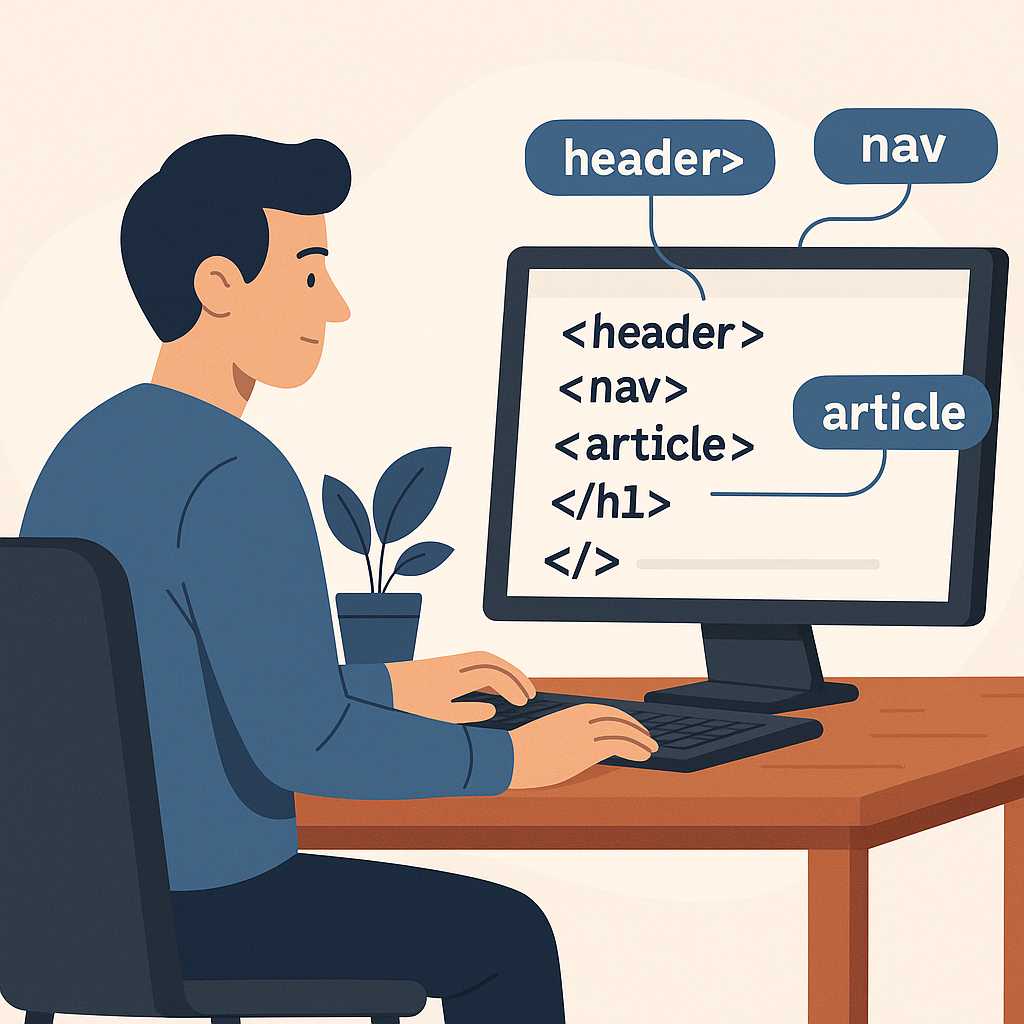
While <div> and <span> are versatile, overusing them can make your HTML less meaningful. Modern HTML5 introduced several semantic elements that you can use instead of generic containers to provide better context to browsers and search engines.
Common Semantic Replacements:
- <header> — For top-of-page or section headings
- <section> — For distinct sections of related content
- <article> — For standalone, reusable content blocks
- <aside> — For side information or widgets
- <footer> — For page or section footers
Using semantic tags improves SEO and accessibility by helping browsers understand what each part of your page represents. For example, instead of writing:
<div class="footer">
  <p>© 2025 KnowAdvance. All Rights Reserved.</p>
</div>
You can write:
<footer>
  <p>© 2025 KnowAdvance. All Rights Reserved.</p>
</footer>
Both are valid HTML, but the second version is semantically richer. Learn more about these tags in our guide on 10 Useful HTML Tags Every Developer Should Know.
Performance and SEO Considerations
While <div> and <span> are harmless by themselves, overusing them can bloat your HTML and slow down rendering. It’s a common mistake to wrap every small section in unnecessary divs — often called “divitis.”
Here are some best practices:
- Use
<div>only when grouping elements logically improves structure. - Avoid nested divs unless required for layout.
- Use semantic tags wherever possible instead of generic containers.
- Keep inline styles minimal — prefer external or class-based CSS.
Following these principles ensures cleaner HTML, faster load times, and better SEO performance — three pillars of effective web development.
Accessibility Best Practices
Accessibility (a11y) is often overlooked, but it’s crucial for making your website usable by everyone, including people with disabilities. When using <div> and <span>, remember:
- Add
roleattributes when using them for custom UI components (e.g.,role="button"). - Ensure that elements styled as buttons or links are keyboard accessible.
- Use ARIA labels for dynamic or interactive spans and divs.
<div role="button" aria-label="Submit Form">Submit</div>
This helps assistive technologies interpret your non-semantic elements correctly, improving user experience and accessibility compliance.
Further Reading
- CSS Flexbox Complete Guide with Examples
- How to Center Anything in CSS
- 10 Useful HTML Tags Every Developer Should Know
FAQs
1. Can I use div instead of span?
Technically, yes, but it’s not recommended. The <div> is block-level and will break the text flow, whereas <span> is inline and designed for small inline formatting. Use each tag for its intended purpose.
2. Can I nest a span inside a div?
Absolutely. Nesting <span> inside <div> is common when you want to style a portion of text within a block-level container, like emphasizing a name or price.
3. What happens if I style a span with display:block?
You can change the default display type of any element using CSS. Setting display:block on a <span> makes it behave like a <div>, and vice versa. However, this should be done carefully to avoid breaking layout flow.
4. Which tag is better for SEO — div or span?
Neither tag directly affects SEO since both are non-semantic. What matters is how you use them. Using too many <div> and <span> without semantic meaning can dilute your content structure, so prefer semantic tags when possible.
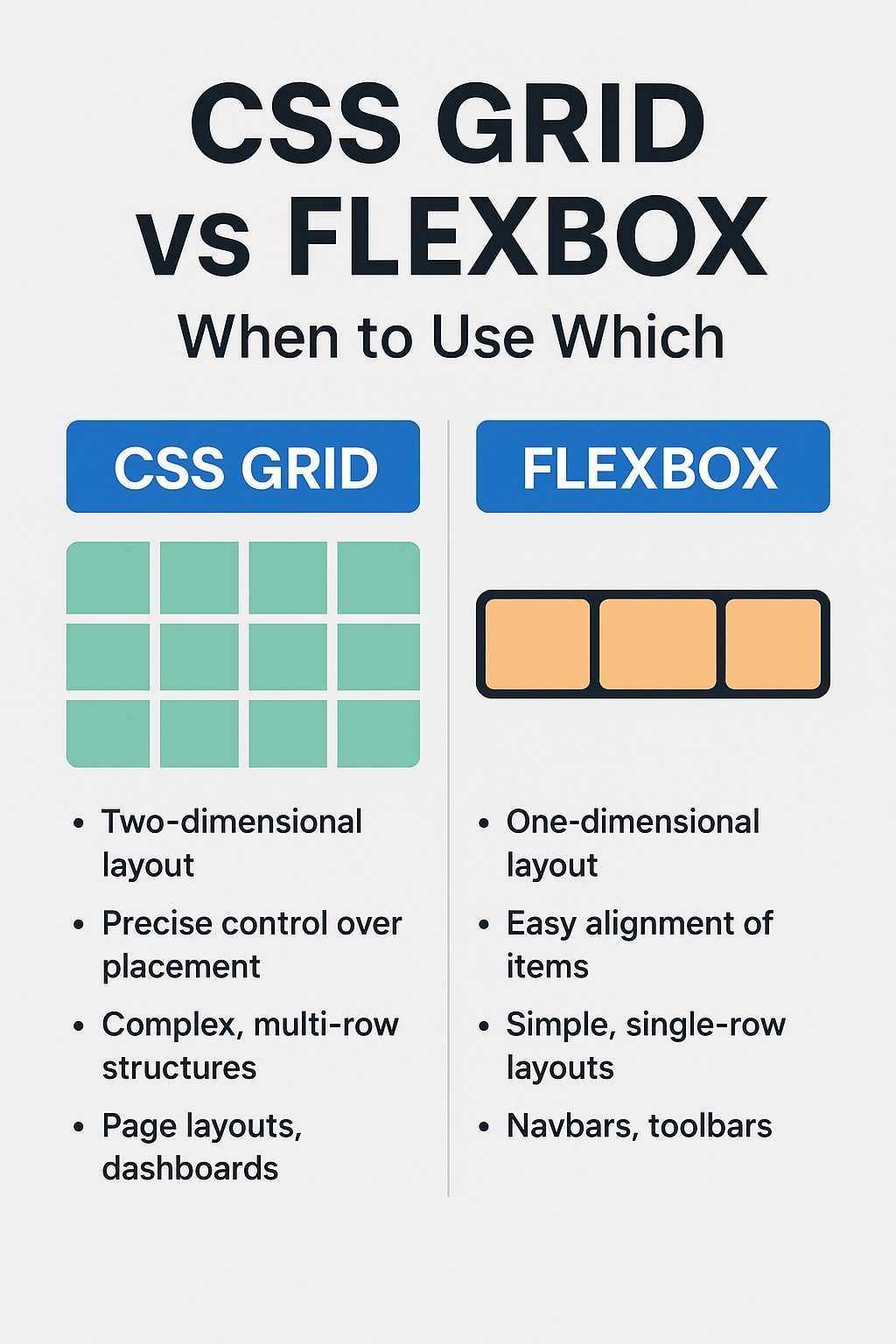
5. Is it okay to use divs for layout instead of CSS Grid or Flexbox?
While <div> is useful for structure, relying solely on it for layout is outdated. Instead, combine it with modern layout systems like Flexbox or CSS Grid for clean, responsive designs.
Conclusion
The <div> and <span> tags are among the most fundamental HTML elements. While both serve as containers, they differ in purpose — <div> structures your layout as a block-level element, and <span> fine-tunes inline content styling. Understanding their differences helps you write cleaner, more semantic, and maintainable code.
In modern web development, balance is key. Use <div> and <span> wisely — pair them with semantic HTML5 tags, CSS layouts, and accessibility best practices for professional, SEO-friendly websites that are easy to manage and delightful to use.